Time-Based Menu Availability: Show the Right Items at the Right Time
Drag the time slider to see how your menu adapts throughout the day
9:00 AM
Wed
Eggs Benedict
$14.99Poached eggs on English muffin with hollandaise sauce
Friday Fish & Chips
$18.50Beer-battered cod with hand-cut fries and tartar sauce
This simulates the actual menu view your customers see. Items outside their time window appear grayed out with an availability label.
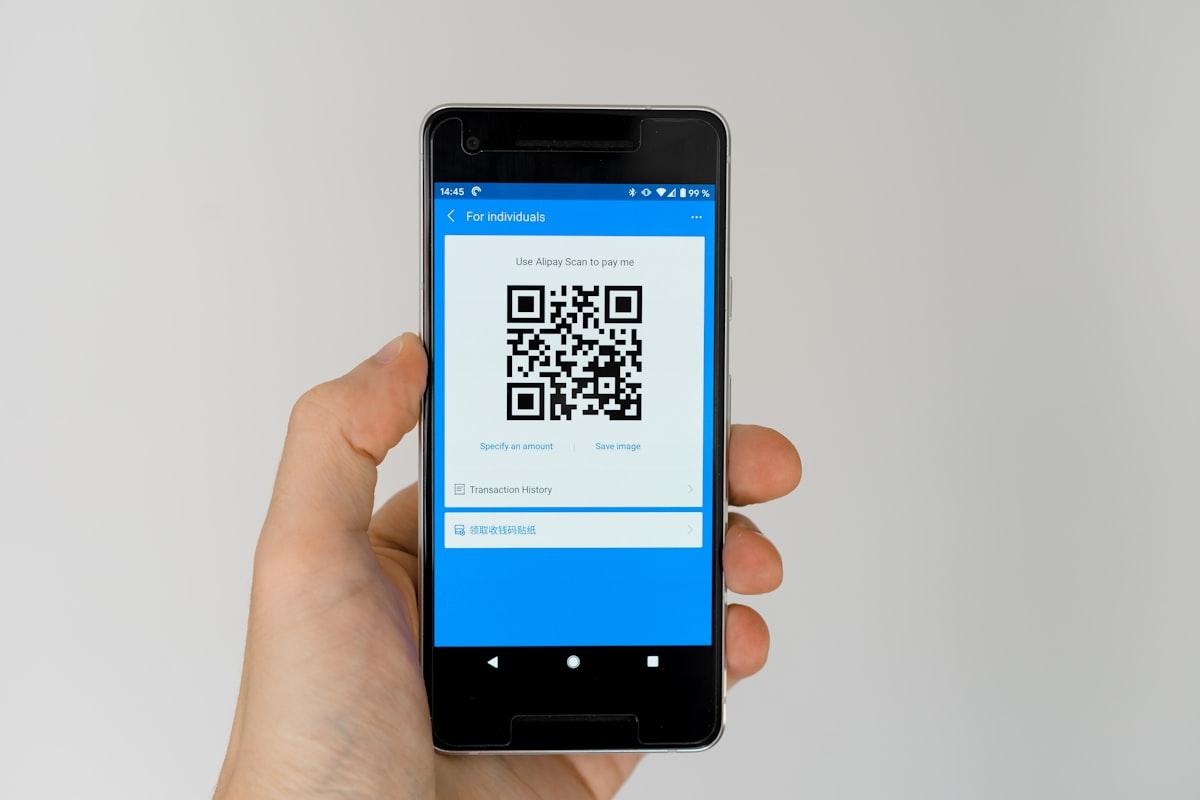
Your restaurant serves breakfast until 11 AM, lunch from 11:30 to 3 PM, and dinner starts at 6 PM. But your digital menu shows everything, all the time. A customer scans the QR code at 8 PM, sees Eggs Benedict on the menu, orders it — and the waiter has to deliver the bad news: "Sorry, that's only served at breakfast."
That small moment of disappointment is entirely avoidable. And it happens far more often than most restaurant owners realize.
Time-based availability solves this by letting you define exactly when each item is available. Your menu adapts automatically — customers only see what your kitchen is actually prepared to serve, right now.
Why Static Menus Create Friction
Most digital menus are static lists. Every item is visible to every customer at every hour. This creates several problems:
- Customers order items that aren't available at the current time, leading to awkward conversations and substitutions
- Servers waste time explaining what's available and what isn't, slowing down service
- The kitchen receives orders they can't fulfill, creating confusion and delays
- Customers feel misled — they saw it on the menu, so they expected to get it
- Happy Hour deals show at full-price hours (or vice versa), causing pricing disputes
A printed menu has the same problem, but customers are more forgiving because they understand a physical card can't update itself. A digital menu has no excuse. If it's digital, it should be smart.
How Time-Based Availability Works
With NEMENU's time-based availability, you set a time window for any menu item directly from your dashboard. It takes about 10 seconds per item:
- Open the item in your menu editor
- In the Availability Schedule section, click "Set time-based availability"
- Set the "Available from" and "Available until" times
- Optionally, choose which days of the week the item is available
- Save — that's it
When a customer views your menu outside the item's scheduled time, the item appears grayed out with a small label showing when it will be available (e.g., "Available until 11:00 AM" or "Available from 6:00 PM"). The item isn't hidden — customers can still see it exists — but it's clearly marked as not currently served.
See It in Action
Drag the time slider below to simulate different times of day and see how menu items respond. Notice how each item grays out and shows its availability window when outside its scheduled time — and how the day selector affects items that are only available on specific days.
Real-World Use Cases
Breakfast / Lunch / Dinner Transitions
The most common scenario. Your pancakes and omelettes are available from 7 AM to 11 AM. Pasta and sandwiches from 11:30 AM to 3 PM. Steaks and seafood from 6 PM to close. Each item knows its time window, and the menu reflects reality automatically.
Happy Hour Specials
Mark your discounted cocktails and appetizers as available only from 4 PM to 7 PM. Outside that window, customers see the item grayed out with "Available from 4:00 PM" — they know the deal exists and when to come back, without being confused about current pricing.
Weekend-Only Items
Your Sunday Brunch Platter is only served on weekends. With day-of-week scheduling, it appears available on Saturday and Sunday during brunch hours, and grayed out the rest of the week. No more "sorry, that's only on weekends" conversations.
Late-Night Menu
Some restaurants have a late-night menu that starts at 10 PM. Time-based availability handles overnight ranges seamlessly — set "Available from 10:00 PM until 2:00 AM" and the system correctly evaluates the overnight window.
How It Differs from Stock Status (86-ing)
You might wonder: isn't this the same as marking items as out of stock? No — the two features serve different purposes:
| Time-Based Availability | Stock Status (86) | |
|---|---|---|
| Purpose | Scheduled daily availability | Ran out of an ingredient today |
| Trigger | Automatic, based on clock | Manual, one-click toggle |
| Duration | Recurring (same times every day) | Temporary (today, this week, indefinite) |
| Customer sees | "Available from 6:00 PM" | "Out of Stock" |
| Resets automatically | Yes, every day | Only if a duration was set |
Both features work together. An item can have a time schedule AND be temporarily 86'd. If your Grilled Ribeye is scheduled from 6 PM to 11 PM but you ran out of ribeye today, mark it as out of stock — and it shows "Out of Stock" even during dinner hours.
Timezone-Aware Scheduling
Time-based availability uses your restaurant's timezone, not the customer's browser timezone. When you set "available until 11:00 AM", that means 11 AM at your location. A tourist from a different timezone scanning your QR code sees the correct availability based on your local clock.
Setting Up Time-Based Availability
Here's a quick walkthrough for setting up your first scheduled item:
- Go to your NEMENU dashboard and open the Menu section
- Click on any item to edit it (or create a new one)
- Scroll down to the "Availability Schedule" section
- Click "+ Set time-based availability" to expand the schedule controls
- Use the "From" and "Until" time pickers to define the availability window
- Optionally toggle specific days off if the item isn't served every day
- Click "Remove schedule" at any time to go back to "always available"
- Save the item — the schedule takes effect immediately on your public menu
Tips for Getting the Most Out of It
- Start with your most obvious daypart items — breakfast items that shouldn't show at dinner, and vice versa
- Use 15-minute buffer windows between dayparts (e.g., breakfast until 11:15, lunch from 11:30) to give the kitchen transition time
- Don't over-schedule — items available all day (like drinks, desserts, sides) don't need a time window
- Combine with categories for maximum clarity: a "Breakfast" category where all items have a morning schedule keeps things organized
- Check the admin items list — items with schedules show a blue time badge so you can see at a glance which items have time restrictions
The Result: A Menu That Respects Your Customer's Time
When a customer scans your QR code at 7 PM on a Tuesday, they should see your dinner menu. Not your full menu with breakfast items they can't order, lunch specials that ended hours ago, and a weekend brunch platter that won't be available for five days.
Time-based availability makes your digital menu honest. It reduces back-and-forth with servers, eliminates kitchen confusion from impossible orders, and — most importantly — gives customers confidence that everything they see on the menu is something they can actually order right now.
It's one of those features that, once set up, works silently in the background every single day. Your menu just works — showing the right items at the right time, automatically.