Multi-Currency Menus: Show Prices in Your Guests' Currency Automatically
La Dolce Vita
Appetizers
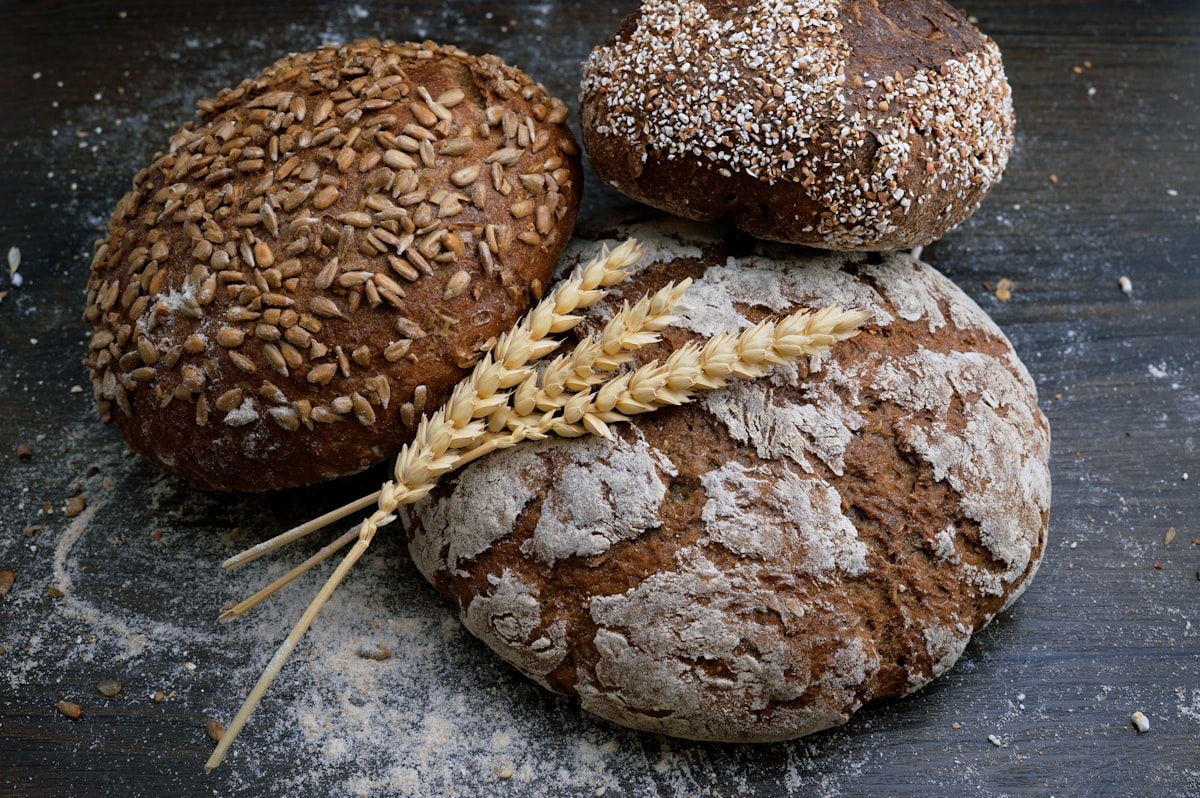
Toasted ciabatta with garlic butter and herbs
Contains: Gluten

Crispy fried squid rings with lemon aïoli
Contains: Shellfish, Gluten
Tossed in hot sauce with blue cheese dip
With herbs & garlic butter
Click the currency buttons above to see prices update in real-time
Picture this: a couple from Tokyo sits down at your restaurant in Barcelona. They open the QR code menu, see prices in euros, and start doing mental math. How much is €18.50 in yen? Is this dish expensive or a bargain? The hesitation costs you an upsell — or worse, they order less than they would have because everything feels uncertain.
Now imagine the same scenario, but your menu has a small currency dropdown in the corner. They tap it, select ¥ JPY, and instantly every price on the menu updates to Japanese yen. No math, no guessing, no friction. They order confidently, add a dessert, and leave a great review.
That's what multi-currency pricing does. And with NEMENU, setting it up takes less than five minutes.
Why Multi-Currency Matters
If your restaurant, hotel, bar, or café serves international guests — whether you're in a tourist district, near an airport, or in a cosmopolitan city — currency is an invisible barrier to spending. Research consistently shows that customers spend more when prices are displayed in their home currency because it removes the cognitive load of conversion.
- Tourists don't need to open a currency converter app mid-meal
- Business travelers on expense accounts can instantly gauge costs
- International hotel guests browsing room service menus feel at home
- Cruise port restaurants can cater to guests from multiple countries simultaneously
How It Works: A Simple Example
Let's say your restaurant is based in the US and your base currency is USD. You serve a lot of European and Albanian visitors. Here's what your currency setup looks like:
| Setting | Value |
|---|---|
| Base Currency | USD ($) |
| Additional Currency 1 | EUR (€) — Exchange rate: 0.847 |
| Additional Currency 2 | ALL (L) — Exchange rate: 81.25 |
Once configured, here's what happens to your menu prices automatically:
| Menu Item | USD (base) | EUR (auto) | ALL (auto) |
|---|---|---|---|
| Bruschetta | $8.99 | €7.62 | L 730.44 |
| Calamari Fritti | $12.99 | €11.00 | L 1,055.44 |
| Buffalo Wings | $13.99 | €11.85 | L 1,136.69 |
| Garlic Bread | $6.99 | €5.92 | L 567.94 |
Every price is calculated automatically using the exchange rate you set. No manual entry for hundreds of items — it just works.
Try it yourself — click the currency buttons below to see how prices update instantly:
Setting Up Multi-Currency in NEMENU
The entire setup happens on the Currencies page in your NEMENU dashboard. Here's how:
Step 1: Open Configure Currencies
Navigate to Settings → Currencies in your admin sidebar and click the "Configure Currencies" button. A modal opens showing your base currency and a dropdown to add additional currencies.
Step 2: Add Your Target Currencies
Select a currency from the dropdown — NEMENU supports 150+ world currencies. Once added, you'll see an exchange rate field. You can either type a rate manually or click "Get the latest" to fetch today's real-time exchange rate from our integrated forex provider.
Step 3: Review the Price Table
After saving your currency configuration, the main Currencies page shows a spreadsheet-like table with all your menu items. Each row displays the base price and the auto-calculated price for every enabled currency. You can scan the entire menu at a glance to make sure everything looks right.
Step 4: Override Individual Prices (Optional)
Sometimes the auto-calculated price doesn't feel right. Maybe $8.99 converts to €7.62, but you'd rather show a clean €7.50 or round up to €8.00 for simplicity. Just click any price cell in the table and type your preferred value. Overridden prices appear with an orange highlight so you can easily spot them.
To reset any override back to the auto-calculated value, click the small reset icon next to the price.
Step 5: Publish
Click "Save Changes" to store your price overrides, then hit "Publish" to make everything live. Your public menu now shows a currency selector dropdown that lets customers switch between currencies instantly.
What Your Customers See
On the public menu, a small currency dropdown appears in the top-right corner (right next to the language selector if you have multi-language enabled). Customers tap it, pick their currency, and every price on the menu updates immediately — including variant prices and modifier prices.
The customer's choice is saved in their browser, so if they close and reopen the menu, it remembers their preferred currency. No account required, no cookies popup — it just works.
Variants and Modifiers Are Covered Too
Multi-currency isn't just for base prices. If your Buffalo Wings come in a 6-piece ($13.99) and 12-piece ($19.99), both variant prices convert automatically. The same applies to modifiers like "Extra cheese +$2.00" — the surcharge converts to the selected currency.
You can even override variant prices individually. For example, if the 12-piece wings should be exactly €17.00 in euros rather than the auto-calculated €16.93, just type it in the table.
Real-Time Exchange Rates
NEMENU integrates with a professional forex data provider to give you accurate, daily exchange rates. When you click "Get the latest" in the currency configuration modal, we fetch the current rate for your base currency against all your enabled currencies.
Rates are cached per day, so you're not making API calls on every page load. You control when to update — some restaurants refresh daily, others set a fixed rate and adjust weekly. The choice is yours.
Who Benefits Most?
- Tourist-area restaurants — Serve guests from dozens of countries without any confusion
- Hotel restaurants and room service — International guests expect prices in familiar currencies
- Airport and cruise port venues — High-turnover locations with diverse clientele
- Fine dining with international clientele — Remove any friction from the experience
- Bars and nightlife in tourist districts — Guests can check prices without asking the bartender
- International chains — Maintain consistent pricing perception across markets
Pricing and Availability
Multi-currency pricing is available on Pro and Enterprise plans:
| Plan | Additional Currencies | Exchange Rate Source |
|---|---|---|
| Free | Not available | — |
| Pro | Up to 3 currencies | Auto-fetch + manual |
| Enterprise | Up to 10 currencies | Auto-fetch + manual |
If you're on the Free plan, you'll see a preview of the feature with an option to upgrade. Pro users can add up to 3 additional currencies — more than enough for most restaurants. Enterprise accounts get up to 10 for large international operations.
Getting Started
If you're already a NEMENU Pro or Enterprise user, head to Settings → Currencies in your dashboard to get started. The setup takes under five minutes, and your international guests will notice the difference immediately.
If you're new to NEMENU, you can create your digital menu for free and upgrade to Pro when you're ready to enable multi-currency pricing.
Your menu should speak your guest's language — and their currency.